How to use a digital shadow work journal on iPad (GoodNotes, Notability and more)
6 min read · Updated · Khram
A digital journal lives on the device you already reach for at night. Here's how to set one up so it feels close to paper, stays private, and doesn't get lost in your files.
Paper or digital?
Both work. The best journal is the one you'll open again tomorrow.
- Digital suits you if your tablet is already by the bed, you like to erase and rewrite, you want the journal behind a passcode, or you want to start tonight without waiting for shipping.
- Paper suits you if screens keep you awake, you love the feel of a pen, or you want a break from devices at night.
Plenty of people use both: the digital file for nightly writing, a paperback for the nights they want to stay off screens.
What you need
- A tablet and stylus: an iPad with Apple Pencil or another compatible stylus, or an Android tablet with a pen, such as a Samsung Galaxy Tab with S Pen.
- An app that lets you write on PDFs: GoodNotes, Notability, Noteshelf, Xodo, Samsung Notes or similar.
- The journal PDF.
How to open the PDF in your app
GoodNotes
- Download the PDF on your iPad. If you bought on Gumroad, the link is in your receipt email.
- Tap the Share icon and choose GoodNotes, or use Import inside GoodNotes and pick the file from Files.
- It opens as a new notebook. Rename it so it's easy to find.
Notability
- Download the PDF.
- Tap Share and choose Notability, or use Notability's own Import option and select the file.
- It opens as a new note, with every page ready to write on.
Other apps and Android
Most PDF apps work the same way: open the file from the Files app or the share sheet. On Android, open it from your Downloads folder with Samsung Notes, Xodo or the PDF app you already use.
Pen colors that work on dark pages
A dark journal is easy on the eyes at night, but black ink disappears on it. What works instead:
- White, gold or lavender ink. On INDIGO's indigo pages these show up best.
- A medium pen width, so your writing stays readable with the screen turned down.
- Low brightness and a warm screen setting (Night Shift on iPad) for late-night writing.
Finding your place each night
A journal with 100+ pages needs a simple way back to where you stopped. Add a bookmark or favorite to the page you're on, or use the page thumbnails your app shows. INDIGO is meant to be worked through in order, so you only ever need to find the last page you wrote on.
Keeping it private
- Lock your tablet with a passcode or Face ID.
- Check whether your notes app offers a lock for individual notebooks.
- Think about sync. If the app backs up to iCloud or Google Drive, your journal is there too. That helps if you lose the device; turn sync off for this notebook if you'd rather keep it in one place.
- Export a copy now and then (Share, then export as PDF) so your writing survives a change of app or device.
Can I print it?
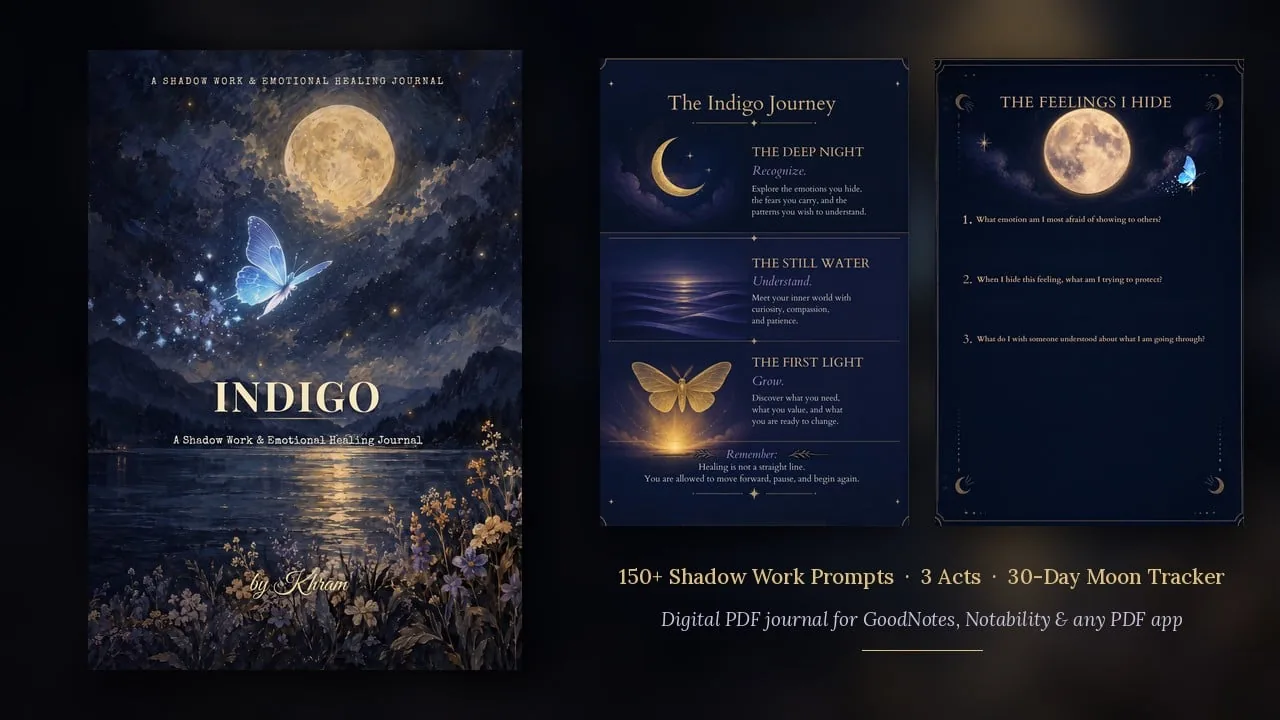
Usually yes, for personal use. Dark pages use a lot of ink, though, and most pens won't show up on them. If you'd rather write by hand, a print edition is easier: the INDIGO black-and-white paperback gives every page a white writing panel, and the full-color paperback keeps the night-sky art (use a white, gold or silver gel pen).
Try it in your app first
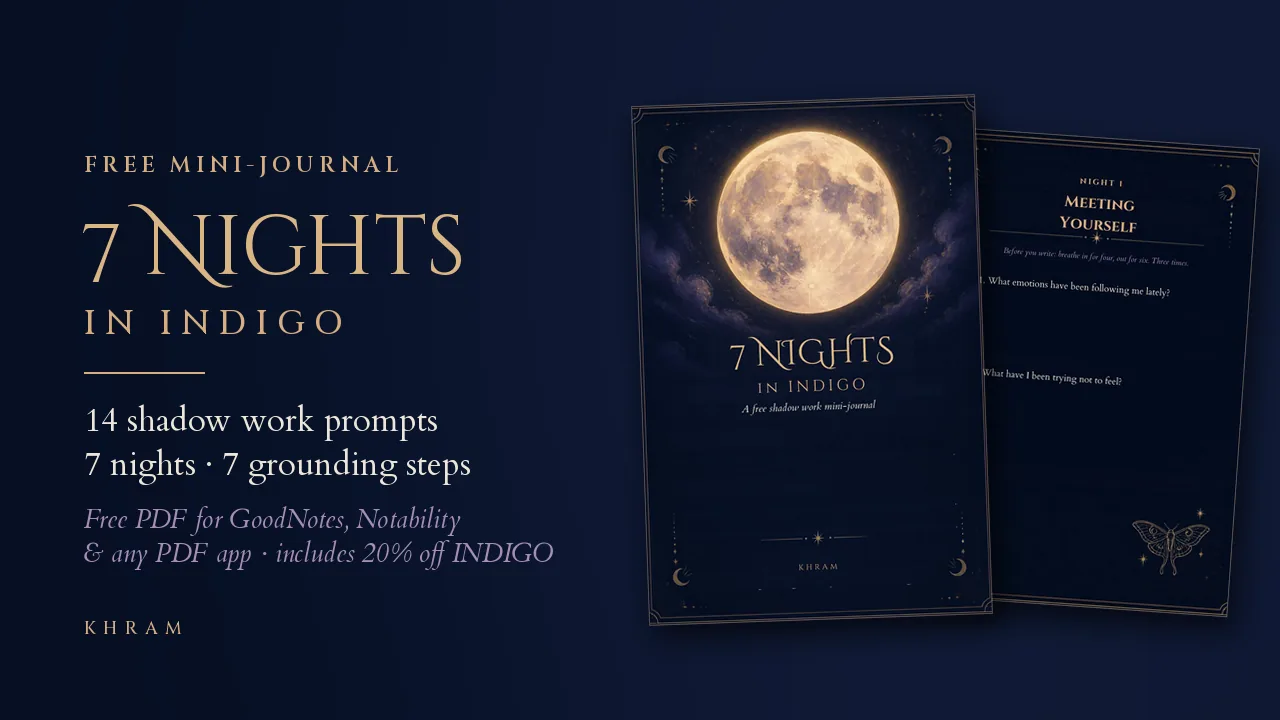
7 Nights in INDIGO is a free, pay-what-you-want PDF with fourteen prompts for one week. Open it in your app, try the pen colors, and see if writing on a screen feels right before you get the full 121-page INDIGO journal.
Khram journals and guides are self-reflection tools, not a substitute for professional mental health care. If you are in crisis or thinking about hurting yourself, call or text 988 in the US, contact your local emergency number, or find a helpline at findahelpline.com (opens in a new tab).
Keep reading

Getting started
Shadow Work Journal for Beginners: How to Start Gently
What shadow work is, how to start journaling about it safely, a simple 10-minute routine, 12 beginner prompts, and what to look for in a shadow work journal.
7 min read
Healing journals
Emotional Healing Journal: What Writing Can (and Can't) Do
What 40 years of research says about writing through hard feelings, how to journal without spiraling, and when a journal isn't enough. Honest, no 30-day promises.
7 min read
Journal prompts
60 Shadow Work & Self-Reflection Journal Prompts (Free List)
60 free journal prompts for shadow work and self-reflection, grouped by theme: hidden feelings, overthinking, people-pleasing, anger, envy, inner child, relationships and self-worth.
9 min read